
eSight Go Device Software Updates
eSight Go devices frequently receive over-the-air software updates with a WiFi connection that introduce new features and enhance existing ones. You can check here to find out when a new software update is available for your eSight Go device and Companion App.
Latest Update: eSight Go Software Version 5.3
(June 18, 2026)
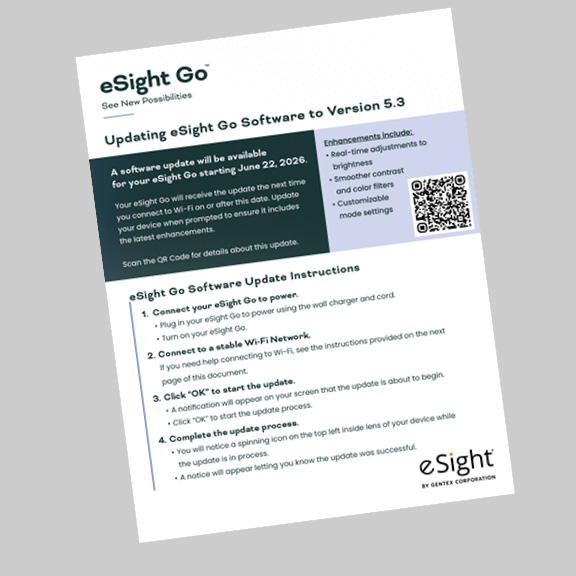
A software update for your eSight Go device will be available starting on June 22, 2026. Your eSight Go will receive an update to version 5.3 the next time you connect to Wi-Fi after this date.
It is recommended that you connect your eSight Go to Wi-Fi and update your device when prompted. Connecting to Wi-Fi and updating your software ensures your eSight Go functions correctly and includes the latest enhancements—including smoother contrast and color filter settings, real-time adjustments to brightness, customizable mode settings menu and more.
To ensure a smooth update, please review the following instructions, helpful tips and more.
Helpful Tips
Here are a few tips that may be helpful as you prepare to start the download process:
-
- You may use your device during the upgrade process, but you’ll want to make sure you are plugged in to power using your charging cord. The update will not be successful if your eSight device shuts off during the process due to a low battery.
- You can start your update at night. Don’t worry about leaving your eSight Go device on overnight—your device will go into sleep mode after the update is complete.
- If your eSight Go device is turned off at the time of the update, the update will occur the next time you turn your device on. If this happens, follow the steps outlined above.
Resources to Help You Update Your eSight Go Software
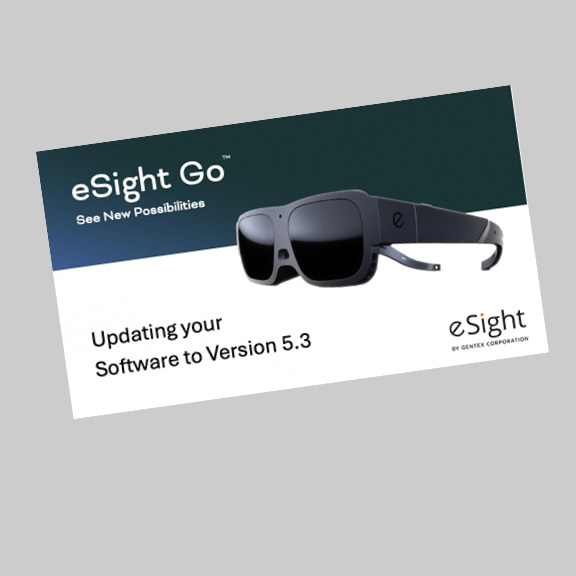
Use the following guide and video to help you update your eSight Go software.
Step-by-step instructions are also provided below.
Set-by-Step Instructions for Updating Your eSight Go Software
1. Connect to Wi-Fi and Power
When you’re ready to start the update, plug in your device to power using the wall charger and cord provided, turn it on and connect it to a stable Wi-Fi network.
NOTE: Need help connecting to Wi-Fi? See the instructions included below.
2. Click “OK” to start the update
You will see a notification appear on your screen that the update is about to begin. Click on “OK” to start the update process.
3. Complete the update process
Instructions for Connecting Your eSight Go to Wi-Fi
- Turn on your eSight Go.
- Download the eSight Companion App from the App store or Google Play and follow the instructions to pair your eSight Go (if not already connected).
- Select “Connect to Wi-Fi” in the app.
- Choose your Wi-Fi network and enter your network password.
- Press “Connect”—your eSight Go will connect automatically to your Wi-Fi network.
eSight Go Companion App Update
After you’ve completed the software update for your eSight Go device, make sure to update the eSight Companion app on your phone. To do this, simply open the App store (for iPhones) or Google Play (for Android phones) and follow the update process as instructed.
Troubleshooting
If the software does not update successfully on the first try, follow these simple troubleshooting steps:
Step 1: Restart your device.
Turn off your eSight Go and power it back on.
Step 2: Next, manually retry the update.
On your eSight Go device, go to Settings > Support > Check for Updates to manually start the download again.
If your eSight Go is not connected to Wi-Fi, follow the steps below to connect to Wi-Fi to allow the software to update—and make sure your device stays up-to-date.
Need help? Give us a call!
Please call the eSight Customer Service team at 855.837.4448 if you run into any problems during the update process. We are available 8 a.m. to 5 p.m. (EST) Monday through Friday and are ready to help.
To access eSight Go user manual or quick-start guide, check out eSight Go Support.